Need personal help? We reply quickly.
Reach our team directly — we walk new creators through setup.
InkToAudio help center
How to use InkToAudio
A complete, plain-English guide for turning your writing into studio-quality audio and distributing it as a podcast. Every feature is explained step by step — no technical knowledge required.
Voices and voice cloning
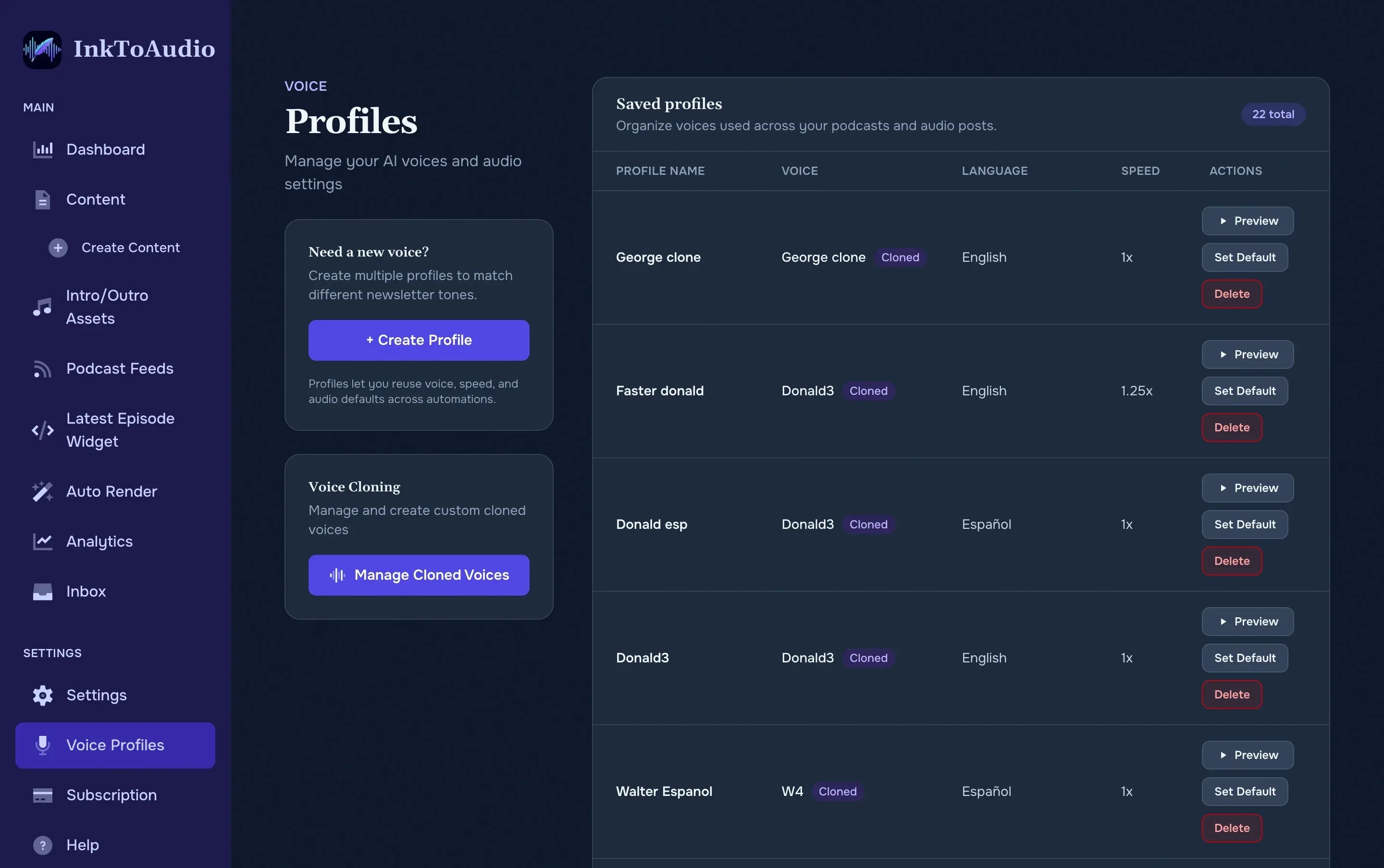
A voice profile is a saved narrator. It includes the voice, language, delivery style, and speed. You can keep one default narrator for daily stories and create additional profiles for special series, languages, or co-host formats.
Choose the right voice for journalism
- News briefs: choose a clear, steady voice and a neutral delivery style.
- Columns or essays: choose a warmer voice that suits the writer's personality.
- Investigations or long reads: choose a slower speed and listen for fatigue over several minutes.
- Interviews or explainers: consider multi-speaker mode so the audio feels more conversational.
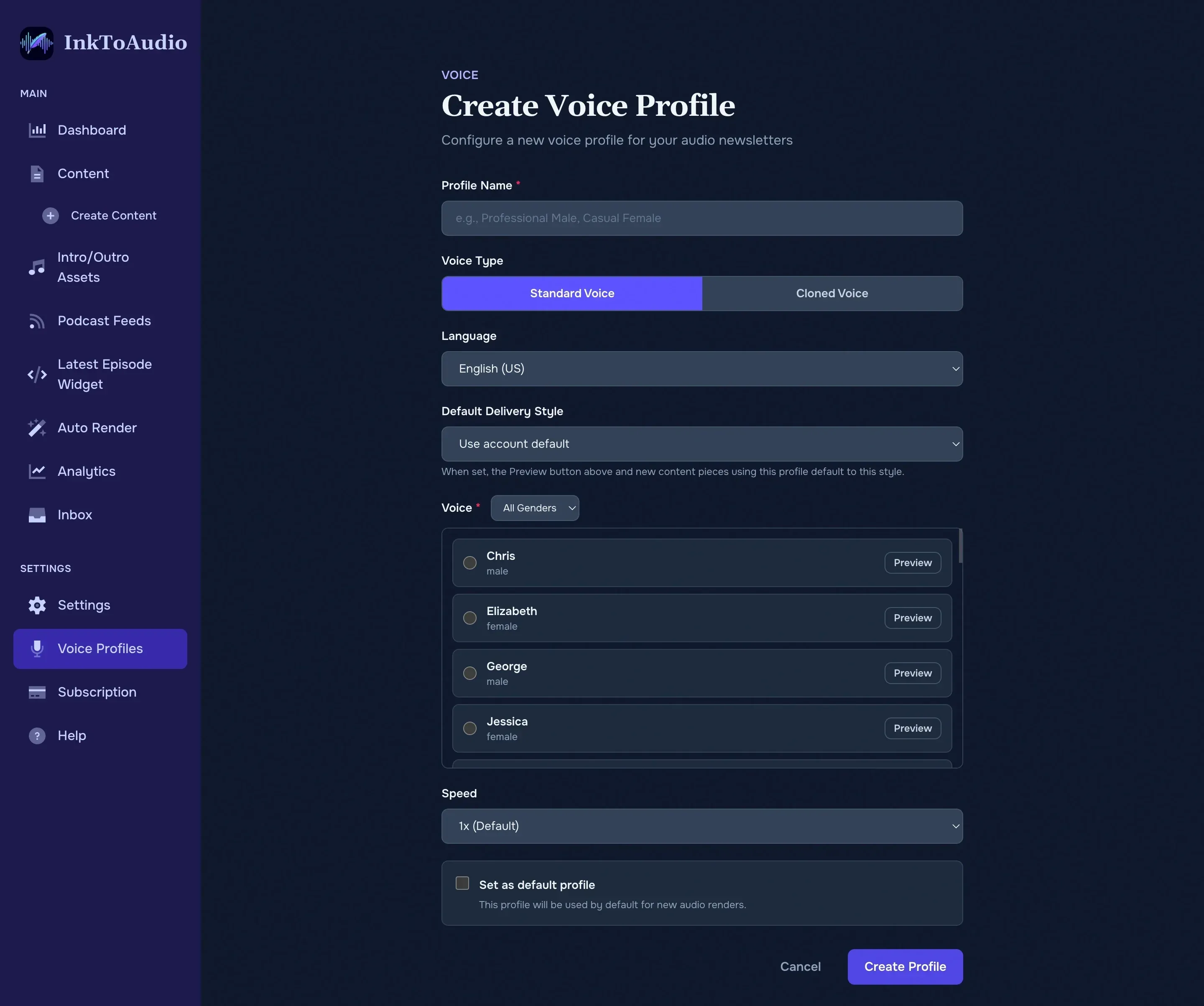
Create a standard voice profile
- Open Voice profiles from the sidebar.
- Click + Create profile.
- Enter a plain name, such as “Daily news narrator.”
- Choose Standard Voice, then select the language, optional delivery style, gender filter, voice, and speed.
- Use Preview before you save.
- Tick Set as default profile if this should be the pre-selected narrator on new posts.
- Click Create Profile.
Clone your own voice
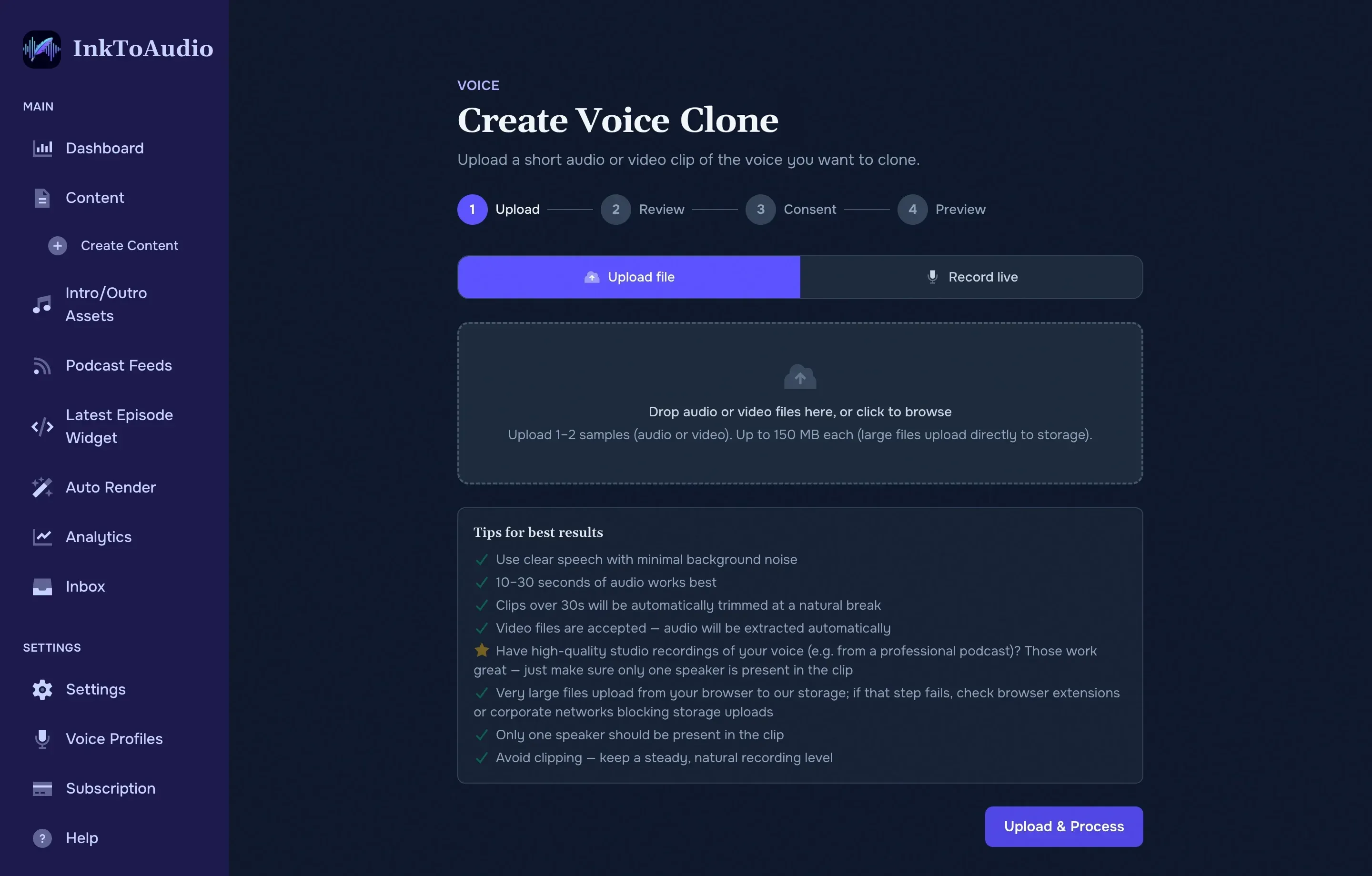
Voice cloning is useful when the byline, host, or publication leader should sound personally present. You need 30–120 seconds of clean speech from one person.
- From Voice profiles, click Manage cloned voices, then Create.
- Upload one or two audio or video files, or record using the provided scripts. Use a quiet room and avoid music or other speakers.
- Review the waveform and transcription. Trim to the clearest section if needed.
- Confirm the consent checkboxes. InkToAudio requires consent before creating a voice clone.
- Wait for the Queue → Training → Finalizing steps, then play the preview.
- Click Sounds good! to add the cloned voice to your voice profile list.
Quality tips
Use two voices in one episode
Multi-speaker mode lets a story sound like a conversation. Turn on Multi-speaker while creating a post, choose a second voice, and label the script so InkToAudio knows who reads each line.
- Type labels such as SPEAKER 1: and SPEAKER 2: in the script.
- Or select lines in the editor and use the speaker-tagging buttons.
Manage voice profiles
- Preview a profile before using it.
- Set as default to make it the first choice on new content.
- Rename profiles so editors know when to use them.
- Delete profiles or cloned voices you no longer need.