Need personal help? We reply quickly.
Reach our team directly — we walk new creators through setup.
InkToAudio help center
How to use InkToAudio
A complete, plain-English guide for turning your writing into studio-quality audio and distributing it as a podcast. Every feature is explained step by step — no technical knowledge required.
Getting started: publish your first audio story
This walkthrough is written for a busy journalist or editor. You do not need audio gear, editing software, or technical knowledge. Bring a finished article, newsletter, or column; InkToAudio turns it into a narrated episode you can share.
Before you begin
Step 1 — Create your account
- Click Get Started in the top-right corner of the home page, or open the sign-up page.
- Enter your email and password, or sign in with Google. Confirm your email address if InkToAudio asks you to.
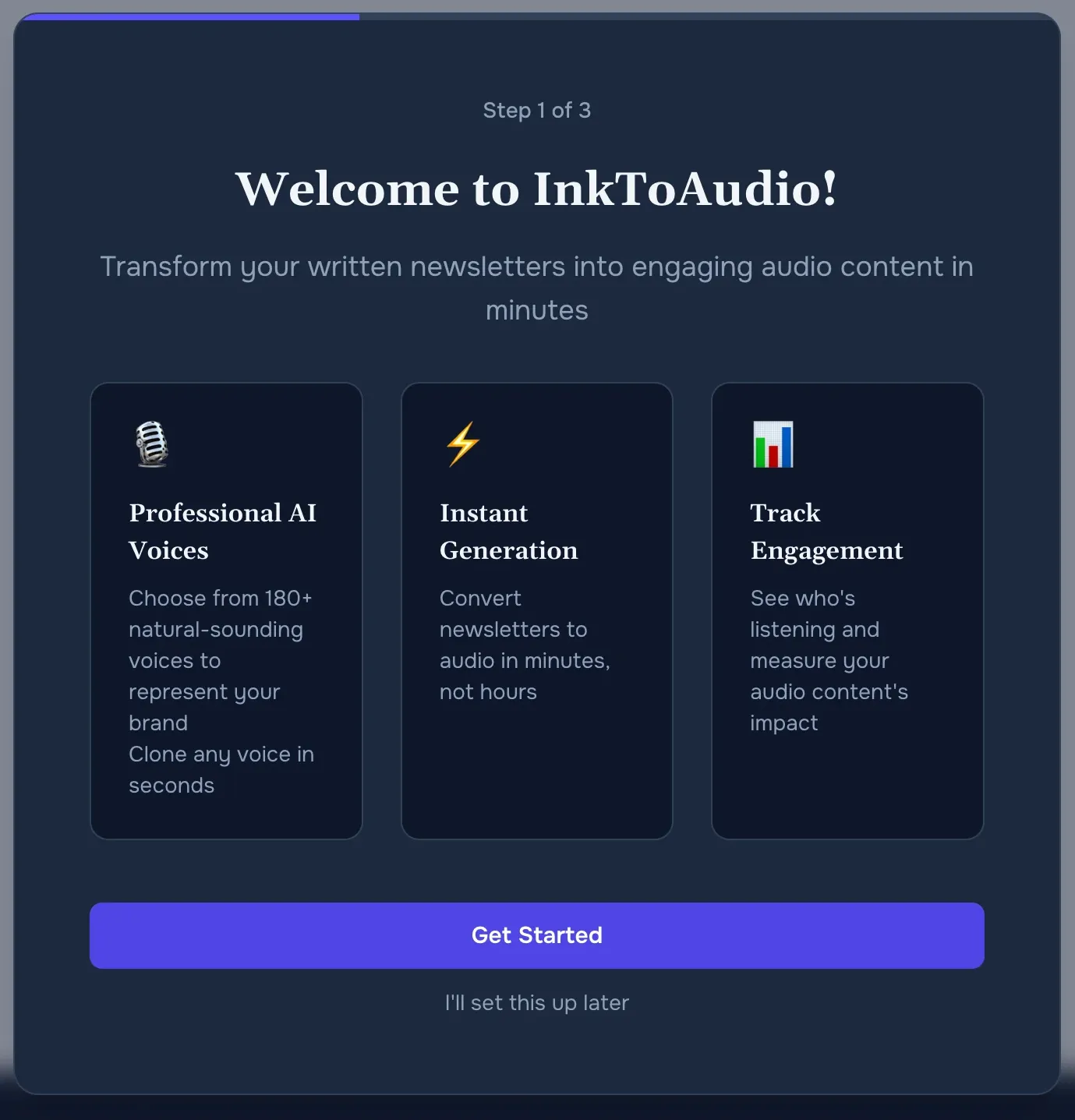
- After sign-in, InkToAudio opens onboarding so you can set up the basics before your first episode.
Step 2 — Add your publication details
- Enter Your name and your Company or brand name. Use the publication name your audience already recognizes.
- Click Continue. You can change these details later in Settings.
Step 3 — Choose a narrator
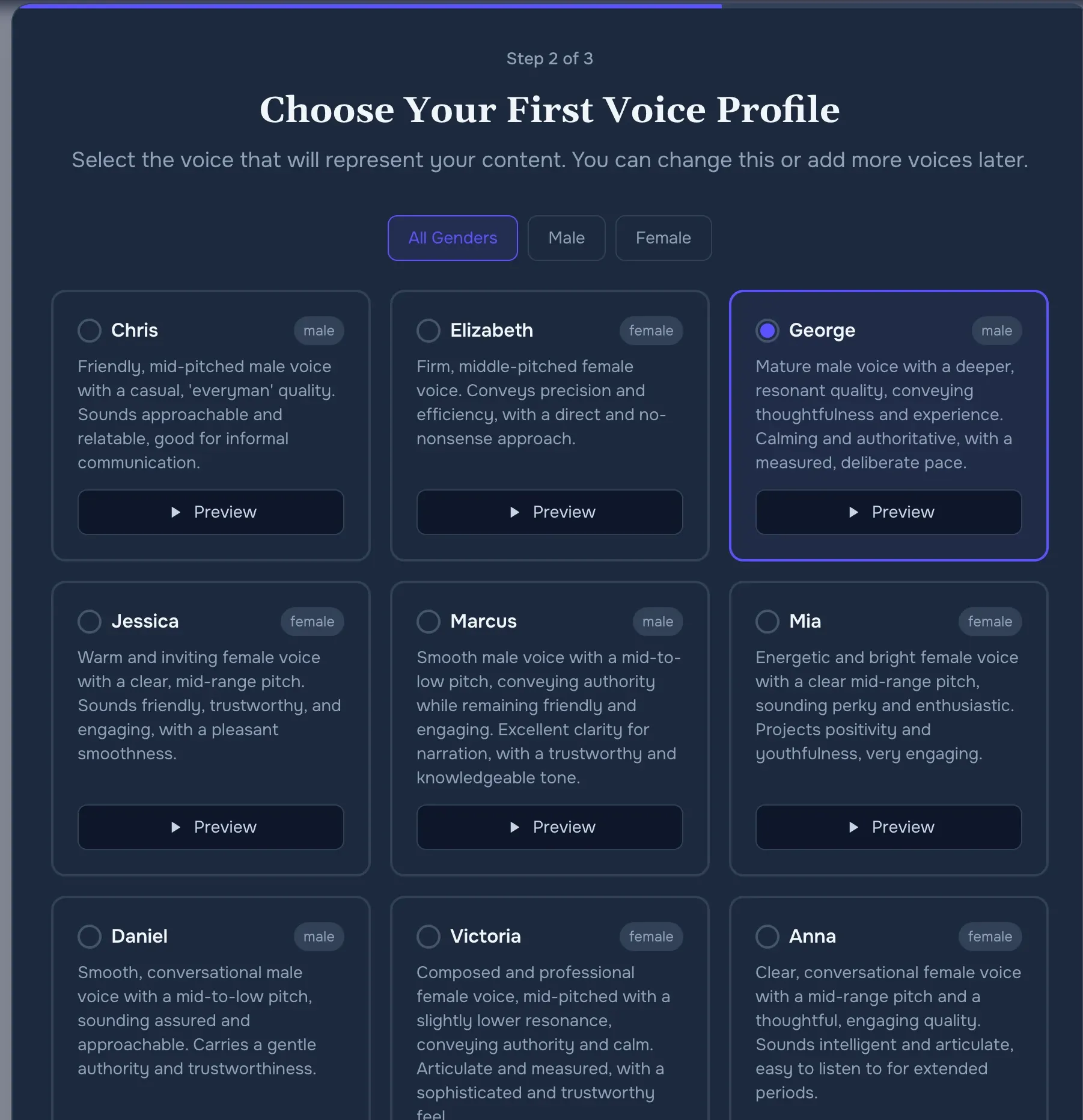
- Browse the voice gallery. Use filters if you already know the tone you want, such as calm, energetic, male, or female.
- Click the play icon beside a voice to hear a short preview.
- Select one voice and click Create voice profile. A voice profile is simply a saved narrator you can reuse.
Tip
Step 4 — Create your first post
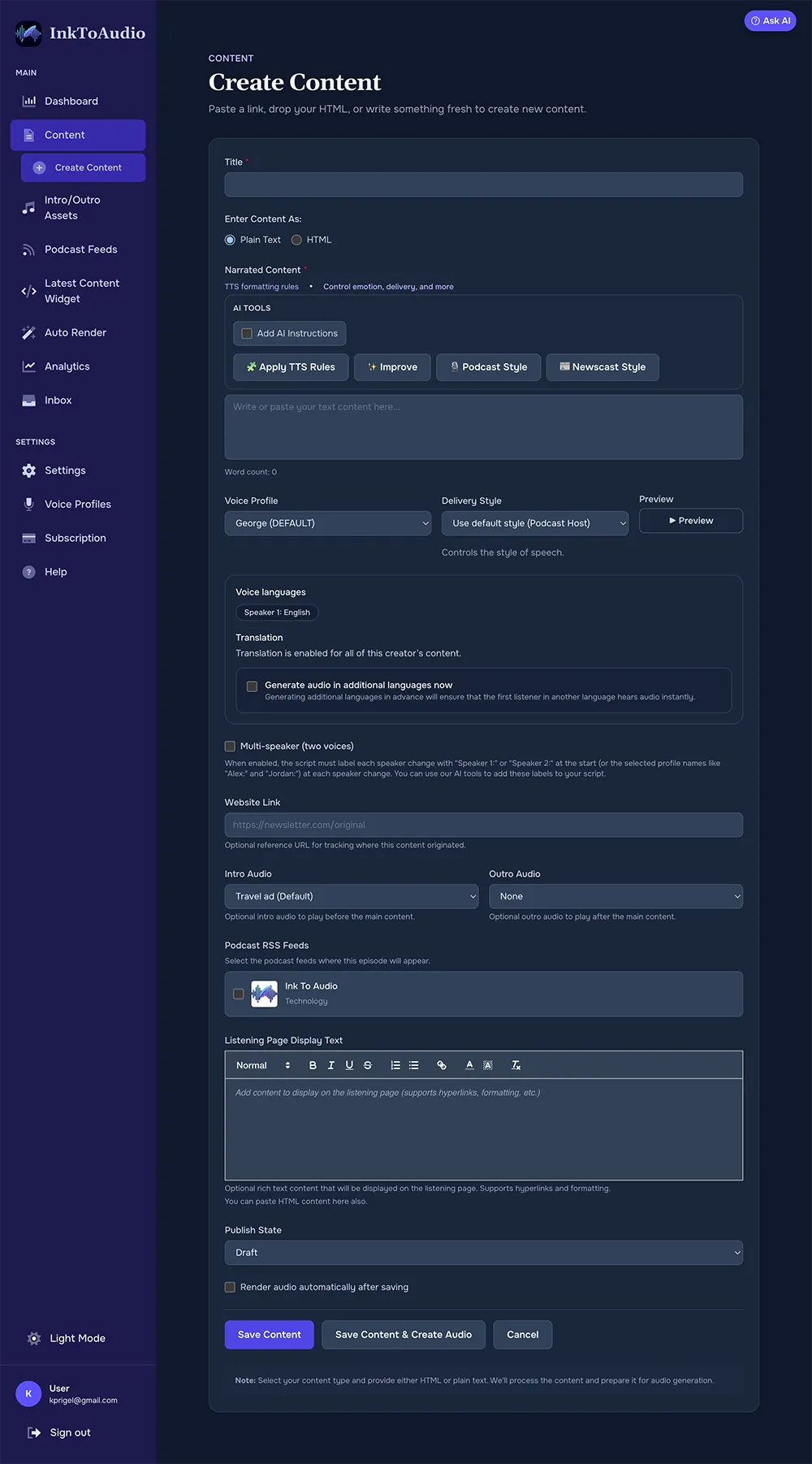
- Use the sample post or paste your own article into the narration box. For a first test, a 500–1,000 word piece is ideal.
- Confirm the voice profile and any optional intro or outro audio.
- Choose whether the post should be Draft while you review it or Published when it is ready to share.
- Click Create audio. InkToAudio renders the audio; most short articles finish in about a minute.
Step 5 — Review, share, or publish
- When rendering finishes, click Listen and play the whole episode or spot-check the beginning, middle, and end.
- If the script needs changes, edit the post and render it again.
- Click Share to copy a listening link, website player, iframe, button, or MP3 download.
Step 6 — Pick your regular workflow
After the first episode, choose the method that matches how you publish:
- Manual publishing: paste articles in Create Content whenever you want audio.
- Email workflow: forward newsletter issues to your private InkToAudio inbox. See Email inbox.
- Website workflow: use Auto Render so article pages create audio automatically. See Auto Render.
Step 7 — Check performance
Once listeners have had time to play your audio, open Analytics to see listens, unique listeners, completion rates, and top posts. See Analytics for plain-English definitions of each number.
Stuck?