Need personal help? We reply quickly.
Reach our team directly — we walk new creators through setup.
InkToAudio help center
How to use InkToAudio
A complete, plain-English guide for turning your writing into studio-quality audio and distributing it as a podcast. Every feature is explained step by step — no technical knowledge required.
Auto Render for website articles
Auto Render is for publishers who want article pages on their own website to get audio automatically. You create one Auto Render setup in InkToAudio, add a small snippet to your article template, and InkToAudio creates or reuses the matching audio player for each page.
Best fit
What happens when a reader opens an article
- Your website loads the InkToAudio snippet.
- InkToAudio reads the main article text and metadata from the page.
- The page domain and private token are checked for permission.
- InkToAudio finds existing audio for that article or creates a new published post and starts rendering.
- The player appears on the article page. If audio is still preparing, the player shows that state until the episode is ready.
Create an Auto Render setup
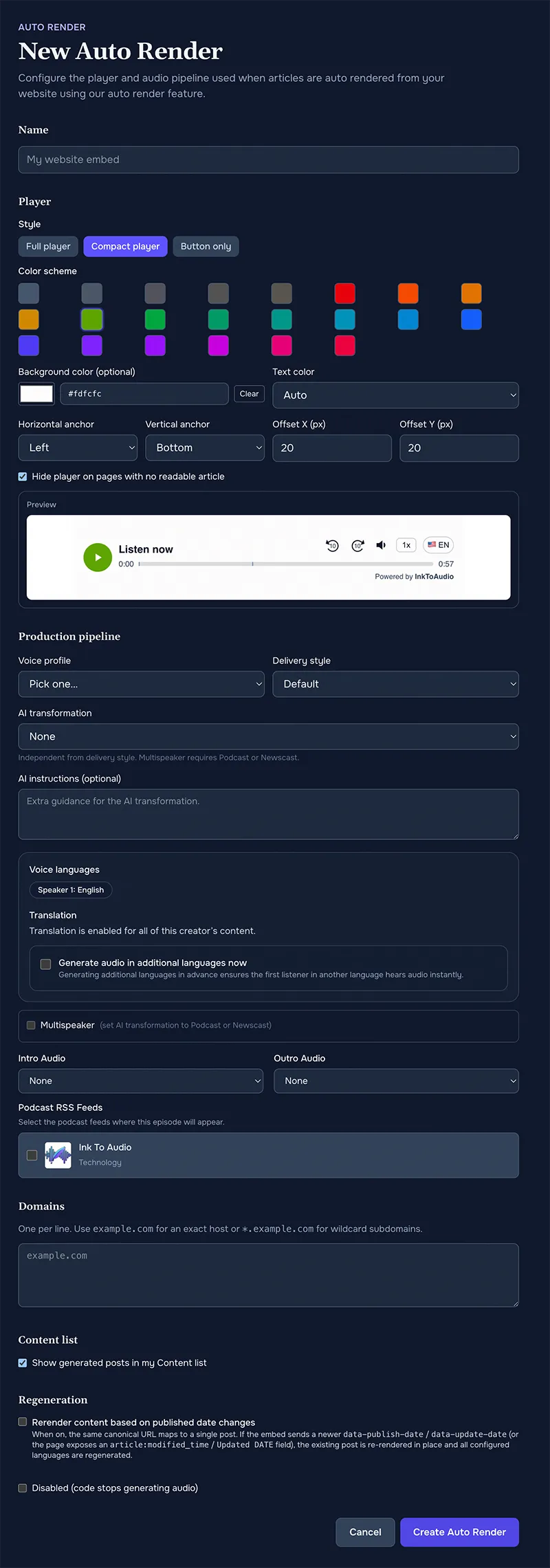
- Open Auto Render from the dashboard sidebar.
- Click New Auto Render.
- Name it after the site, section, or publication.
- Choose the player style, colors, and placement.
- Choose the voice, delivery style, optional AI transformation, translation languages, multi-speaker settings, intro/outro clips, and podcast feeds.
- In AI instructions (optional), type your own guidance, or choose one from the Use a saved instruction dropdown. It lists the instructions saved under Settings, then AI instructions, and copies the text into the box, where you can still edit it. Changing or deleting a saved instruction later does not affect setups that already used it. The dropdown is hidden when you have no saved instructions.
- Add allowed domains, one per line. Use
example.comfor one site or*.example.comfor subdomains. - Decide whether generated posts should be visible in your main Content list.
- Click Create Auto Render.
Import existing website articles
Import Content in the dashboard sidebar crawls an existing website and turns its articles into posts in bulk, instead of waiting for a reader to open each page. It offers three options.
- Import content only — creates draft posts from the crawled articles without rendering audio. Review and render them later from your Content list.
- Import with an existing Auto Render — imports and renders the articles using one of your existing Auto Render pipelines. When the Auto Render snippet later loads on those same pages, it recognizes the content as already rendered by matching the URL, so audio is not generated twice.
- Import + create a new Auto Render — pick the voice, additional languages, multi-speaker, AI transformation, intro/outro clips, and podcast feeds. InkToAudio creates a new Auto Render pipeline, then imports and renders the articles with it. Afterward you can share each post individually or add the new Auto Render snippet to the imported pages.
Crawl limit
Install the code on your website
Copy the generated embed code from Embed Code or Show Code. Paste it into the article template in your CMS. If you are not the person who edits templates, send the snippet to your web producer or developer.
Option 1: Inline player
Use this when you want the player to appear at a specific location, such as under the headline or after the first paragraph.
<script
  id="tts-reader-script"
  src="https://inktoaudio.com/api/auto-render/YOUR_SCRIPT_ID/script.js"
  data-script-id="YOUR_SCRIPT_ID:YOUR_TOKEN"
  data-publish-date=""
></script>
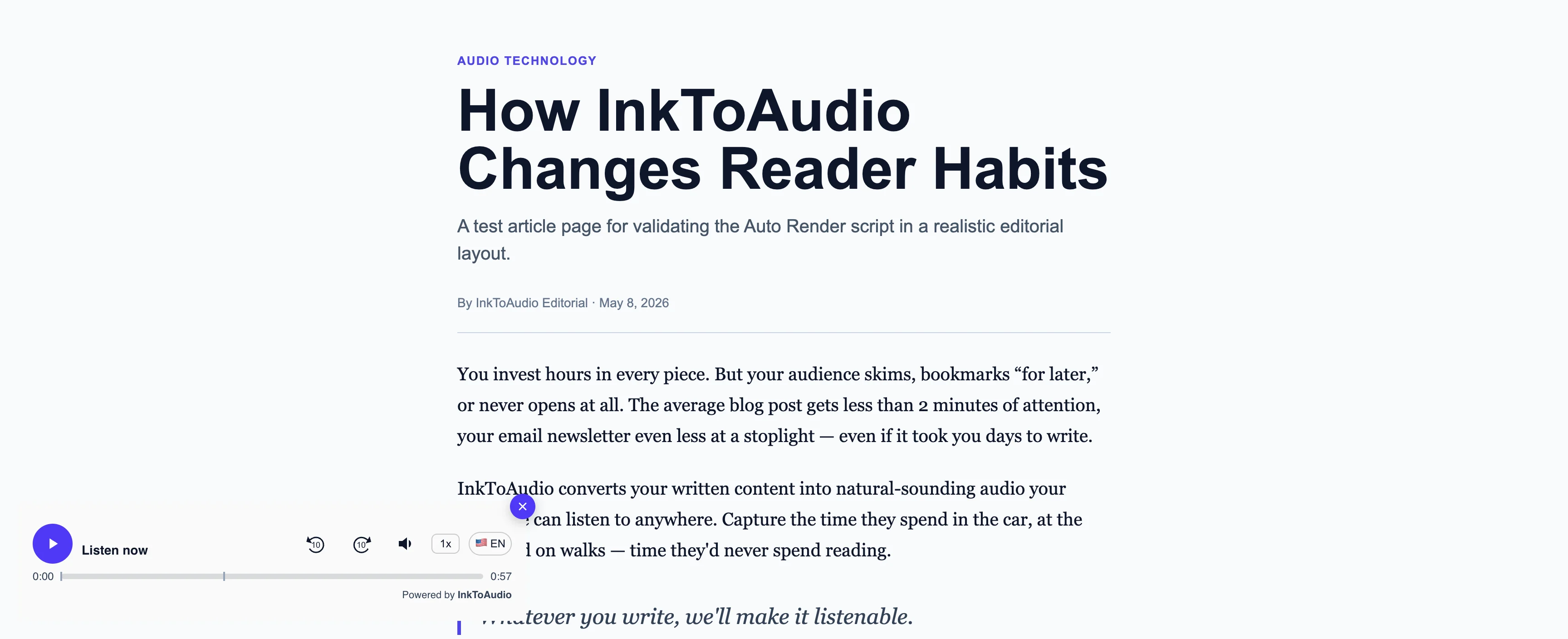
Option 2: Floating player
Use this when you want a player that stays in a fixed position on the screen. Paste it anywhere on the page template, such as before the closing </body> tag.
<script
  id="tts-reader-script"
  src="https://inktoaudio.com/api/auto-render/YOUR_SCRIPT_ID/script.js"
  data-script-id="YOUR_SCRIPT_ID:YOUR_TOKEN"
  data-publish-date=""
  data-mode="floating"
></script>
Option 3: Floating with a custom mount point
Use this when you want the floating snippet to render inline at a specific location instead of as a floating button. Keep data-mode="floating" on the script tag and add an empty target element with id tts-reader-mount (or any element with attribute data-tts-reader-mount) where you want the player to appear. When the target element is present the floating button is suppressed and the player is mounted in that element.
<div id="tts-reader-mount"></div>

<script
  id="tts-reader-script"
  src="https://inktoaudio.com/api/auto-render/YOUR_SCRIPT_ID/script.js"
  data-script-id="YOUR_SCRIPT_ID:YOUR_TOKEN"
  data-publish-date=""
  data-mode="floating"
></script>
Important installation rules
- Put the snippet on pages with one main article, not indexes or tag pages.
- Do not place more than one Auto Render snippet on the same page.
- The article page domain must match your allowed domain list.
- Keep the token private. If you rotate it, replace the snippet on your website.
When an article changes
Auto Render tries to avoid duplicate episodes. It reuses audio when it recognizes the same canonical URL and same content version.
- If
data-publish-dateis blank, changing the article text can create a new render. - If
data-publish-datehas a value, update that value when a recurring page should produce fresh audio. - If Rerender content based on published date changesis enabled, InkToAudio updates the existing post when it detects a newer published or updated date.
Force fresh audio for an Auto Render post
- Open the post from the Content list and click Edit.
- Turn on Regenerate audio on next Auto Render call.
- The next visit from your website triggers a new render. Existing audio remains playable until the replacement is ready.
Use your audio elsewhere
After Auto Render creates a post, the audio is not limited to the article page. You can also use it in emails, social posts, other pages, and external workflows using any of the sharing options covered in the Using your audio guide.
Troubleshooting
- No player appears: confirm the snippet is installed once and the page has readable article text.
- Audio unavailable: check the allowed domains and token.
- The wrong text was narrated: remove duplicate article text, sidebars, unrelated newsletter boxes, and other clutter from the template if possible.
- Need to stop it: disable or delete the Auto Render setup. Existing posts remain in your account.