Need personal help? We reply quickly.
Reach our team directly — we walk new creators through setup.
InkToAudio help center
How to use InkToAudio
A complete, plain-English guide for turning your writing into studio-quality audio and distributing it as a podcast. Every feature is explained step by step — no technical knowledge required.
Creating and managing content
A post is one written piece plus its audio version. For a journalist, that might be a newsletter issue, article, column, briefing, interview transcript, or sponsored message.
The fastest path: paste, review, render
- Open Create content from the sidebar.
- Enter a clear title. This title appears on listen pages and in podcast apps.
- Paste the story into Narration content.
- Choose a Voice profile and optional delivery style.
- Leave the post as Draft if you want to review it first, or choose Published when it is ready for an audience.
- Click Create post or Create audio.

Fields in the editor
- Title — the headline listeners see.
- Website link — optional source link back to the original story.
- Narration content — the exact text the voice reads aloud. Remove navigation labels, ads, captions, or anything that should not be spoken.
- Listening page display text — what readers see below the player on the public listen page. This can be shorter or more formatted than the narration script.
- Voice profile — the narrator for the episode.
- Intro / Outro assets — reusable audio clips before or after the story.
- Podcast feeds — where the episode should publish when it is live.
- Chapter editor — markers for long episodes, useful when you only want to replace a single section of the episode.
Make written copy sound better aloud
Writing that looks good on a page can sound stiff in headphones. Use the AI helpers when you want a more listenable version while keeping the facts and meaning intact.
- Improve with AI — smooths awkward phrasing and improves flow.
- Podcast style — makes the narration more conversational.
- Newscast style — creates a more concise broadcast-style read.
- Custom instructions — add house style, pronunciation notes, or any other instructions you want to apply to the AI transformation. Instructions you use are saved for your company, and you can edit or remove them under Settings, then AI instructions.
- Apply TTS Rules — applies text-to-speech formatting rules only.
Editorial check
Rendering audio
Rendering means turning the narration text into an audio file. Short posts often finish quickly; longer features take more time. Rendering uses the minutes included in your plan.
- Use Auto-render if you want audio created as soon as you save.
- Use Render from the Content library if you want to save first and generate audio later.
- If a render fails, open the post, check for unusual formatting, and try again or contact support.
Edit audio chunks
After a post is rendered, you can edit individual script chunks and re-render only the parts that changed. InkToAudio splices the new audio back into the existing file, so the rest of the episode stays intact and only the selected chunk minutes count against your render usage.
Open a rendered post from Content or from its listen page while signed in as the owner, then use Edit audio chunks:
- Select one or more chunks with the checkbox beside each section.
- Edit the text for the selected chunks.
- Click the re-render button to create replacement audio for only those chunks.
- Legacy posts — audio rendered before chunk editing was available needs a one-time full re-render before individual chunks can be edited.
- Unaligned chunks — if a chunk could not be matched to the audio, it cannot be re-rendered by itself. Run a full re-render if that section needs to change.
- Failed chunk re-renders — your previous audio stays playable and unchanged. Adjust the text and try again, or contact support if the problem persists.
The content library
Open Content to manage everything you have created. This is where editors can search, review status, share links, edit, render, publish, or delete drafts.
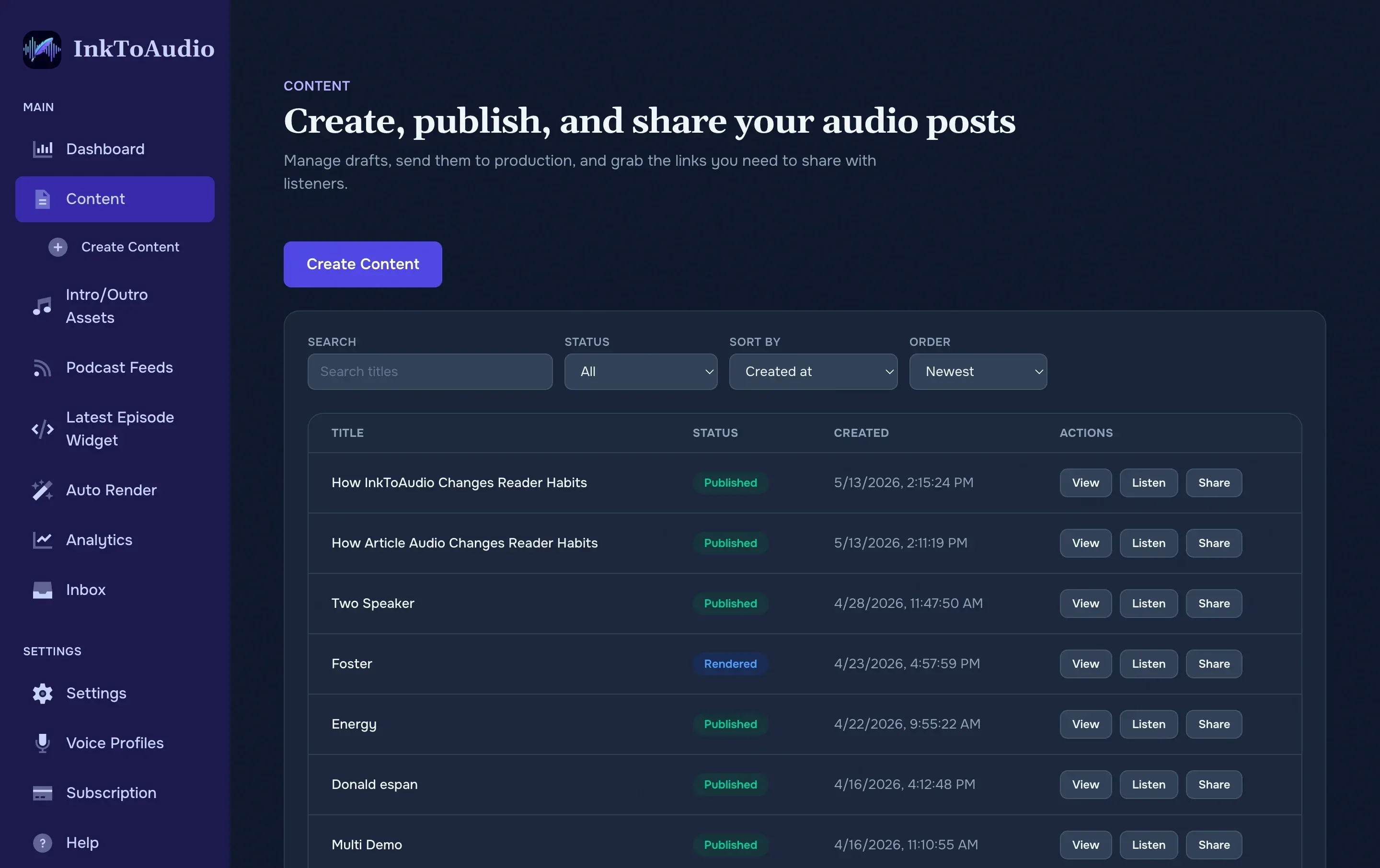
- Search filters by title.
- Status separates drafts, published posts, unpublished posts, rendering items, and failures.
- Sort helps you find newest posts or top performers.
- Share opens the link, embed, iframe, button, and download options.
Intro and outro assets
Intro/outro assets are reusable clips, such as “You are listening to The Daily Brief” or a sponsor disclosure. Create them once, then select them on future posts.
- Open Intro/Outro assets.
- Give the asset a name and choose Intro or Outro.
- Generate it from text with a voice profile, or upload an audio file such as MP3, WAV, M4A, AAC, OGG, or FLAC.
- Set it as a default if most episodes should use it.