Need personal help? We reply quickly.
Reach our team directly — we walk new creators through setup.
InkToAudio help center
How to use InkToAudio
A complete, plain-English guide for turning your writing into studio-quality audio and distributing it as a podcast. Every feature is explained step by step — no technical knowledge required.
Playing your audio
When an item finishes processing it shows a Ready badge. Play it from the player on your dashboard, or from the private link in the “your audio is ready” email. In the iOS app, tap any finished episode to open the full-screen player.
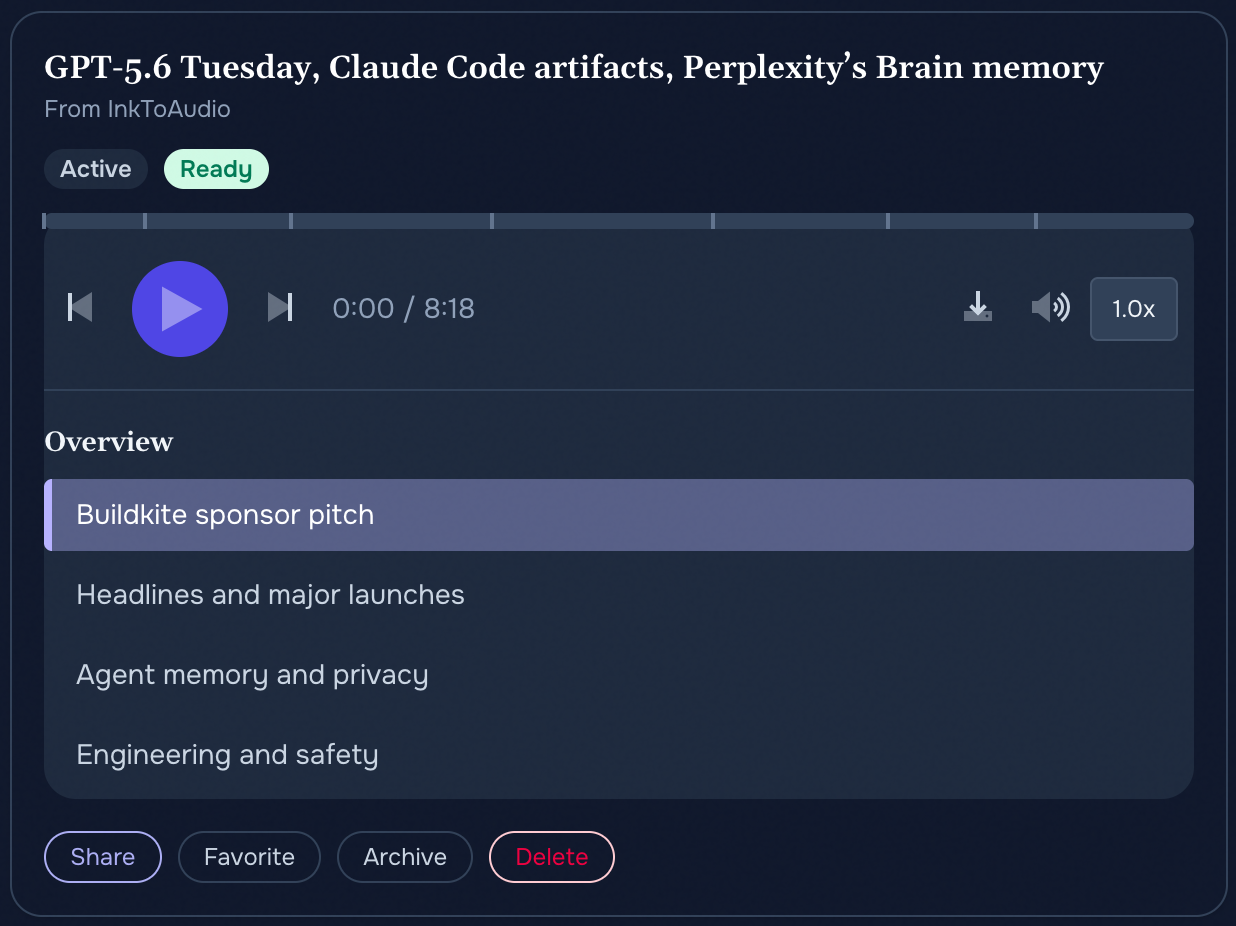
Player controls
Play, pause, and scrub. Drag the progress bar to any point in the episode.
Skip back 15 seconds. Repeat a sentence or catch something you missed.
Skip forward 15 seconds. Jump ahead when you already know a section.
Change speed. Slow it down to follow closely or speed it up to get through a long read.
Chapters
Jump between chapters. Longer items are split into chapters automatically. Open the chapter list and select a chapter to jump straight to that section. The current chapter is highlighted as it plays.
Transcript
Read the transcript. When a transcript is available, read along while you listen, skim ahead, or copy a passage you want to keep.
Download for offline listening
Download the episode. On the web, choose Download MP3 from the episode’s Share options. In the iOS app, tap the download button on an episode to keep its audio available without an internet connection.
Background and lock-screen playback (iOS app)
Keep listening in the background. In the iOS app, playback continues when you leave the app or lock your phone. Standard controls appear on the lock screen and in Control Center.
Send audio to another device. Use AirPlay to listen through speakers or headphones.
Picks up where you left off
Playback speed default
You can set a default playback speed so new episodes start at the pace you prefer, then adjust any single episode while it plays. Choosing which voice reads your audio is covered on the Individual plans page.