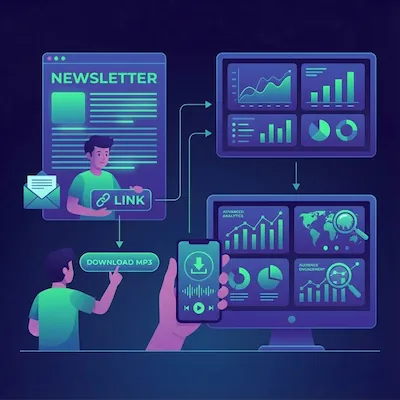
Introducing Auto Ingest: A Custom Audio Pipeline for Every Newsletter
If you write or manage more than one newsletter, you know the friction. Every draft gets forwarded to the same InkToAudio address, which means the same voice and the same settings. The weekly roundup and the long-form essay do not need the same treatment, but they end up sharing one inbox.
Auto Ingest fixes that. Each Auto Ingest pipeline gets its own email address and its own voice pipeline. Draft your content in your newsletter tool, forward the draft to the address before you publish, and it becomes a post that uses that pipeline’s settings. Each pipeline can also have its own custom AI instructions, so your written content is transformed exactly the way you want.
What Auto Ingest does
- Creates a unique email address for each pipeline, such as model.run.1856@inbox.inktoaudio.com, separate from your main Forwards address.
- Lets each pipeline carry its own custom AI instructions, so your content is transformed exactly the way you want.
- Applies the pipeline’s voice profile, delivery style, AI transformation, languages, intro and outro audio, and podcast feeds to every email that arrives.
- Lets you choose whether each email renders audio right away or waits as a draft for your review.
How it works in four steps
1. Create a pipeline
Open Auto Ingest in the sidebar, click New Auto Ingest, and give the pipeline a name, such as the name of the newsletter.
2. Choose your settings
Pick a voice profile, which is the only required setting, then set the delivery style, AI transformation, additional languages, multispeaker, intro and outro audio, and the podcast feeds where episodes should appear. Click Create Auto Ingest and your address is created.
3. Forward your draft
Click Copy next to the address. Then forward or email your draft to it from your newsletter tool, before you publish.
4. Let it run
Each email is cleaned up, passed through the pipeline’s AI transformation and instructions, and turned into a post. From there it follows the mode you picked.
Render automatically or save a draft
Under When an email arrives, you choose one of two modes. Create audio automatically turns each email into a post and starts rendering right away, using your plan’s render minutes. Save as a draft creates the post with your voice and AI settings already applied, but waits until you render it yourself from Content.
A good pattern is to render the weekly roundup automatically and save longer essays as drafts, so you can read the AI-edited script before any audio is made.
Pair it with custom AI instructions
Every pipeline has an optional AI instructions field, and you can pick a saved instruction from your Settings. This is where newsletter-specific quirks live. If an issue always opens with a list of links, you can write: This newsletter begins with a list of links, do not include these in the narration output. If your newsletter mentions AMP and you want it said as one word, you can write: AMP is an acronym spoken as a single word, convert each instance of “AMP” to “Amp”.
One thing to know: AI instructions only run when the pipeline has an AI transformation other than None. If you want to keep your wording and still apply your instructions, choose TTS rules only.
Who it is for
- Substack writers: draft your post, forward the draft to your pipeline address, and review the audio before you publish.
- Beehiiv writers: give your main newsletter and a premium or secondary newsletter different voices, different podcast feeds, and their own AI instructions.
- Ghost and WordPress publishers: forward each draft article to a pipeline address and get a post with that pipeline’s voice and settings, rendered or saved as a draft.
- Anyone managing several shows: one pipeline per newsletter keeps voices, languages, and feeds from getting mixed up.
Get started
Open the sidebar, choose Auto Ingest, and click New Auto Ingest. If you do not have any pipelines yet, click Create your first Auto Ingest. The full walkthrough is in the Auto Ingest guide in the InkToAudio help center.
Frequently Asked Questions
How is Auto Ingest different from my Forwards address?
Your Forwards address does not apply any transformations. It simply adds the forwarded draft content to your Content so you can process it manually. Auto Ingest gives each newsletter its own address and applies that pipeline’s voice, AI transformation, and custom AI instructions, then either renders audio automatically or saves a draft. Emails to a pipeline address also show up in Forwards.
How is Auto Ingest different from Auto Render?
Auto Render is a website embed snippet that reads articles off your site. Auto Ingest works by email: you forward draft content to a pipeline address.
Will it use my render minutes?
Pipelines set to Create audio automatically render right away and use your plan’s render minutes. Pipelines set to Save as a draft do not create audio until you render the post yourself.
What happens if the same email arrives twice?
Only one post is created, even if the same content reaches different addresses on your account.
Can I pause a pipeline or change its address?
Yes. Tick Paused and emails to the address still show up in Forwards but no posts are created. Generate new address gives the pipeline a new address and the old one stops working immediately, so update any forwarding rules that use it.
Start converting your newsletter to audio today
InkToAudio handles synthesis, podcast distribution, and analytics—free to start.
Try InkToAudio free