How to Turn Your Substack Newsletter Into a Podcast (2026)
Some Substack readers would listen if audio were available. Recording, editing, and distributing every issue is a second job most writers do not have time for. InkToAudio turns each issue into an episode for Spotify and Apple Podcasts without a microphone.
This guide walks through the whole process with InkToAudio. The first episode is free, so you can hear your newsletter as audio before committing to anything.
What you need
- A published Substack newsletter (any topic, any size)
- An InkToAudio account (the free tier covers your first episode)
- About 10 minutes for the one-time setup
Step 1: Generate Audio From Your Latest Issue
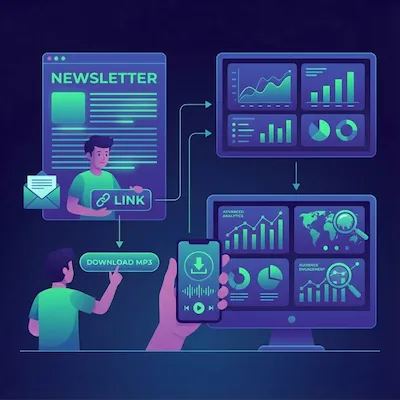
Open InkToAudio and create a new episode. You have three ways to get your Substack post in: paste the post text (or HTML) directly, use Import Content to pull the post in from its URL, or send a test email of the issue from Substack and forward it to your personal InkToAudio inbox address—the post lands in your account fully parsed, ready to work with. The platform applies AI script optimization to smooth out phrasing that reads well but sounds awkward spoken, and prepares it for rendering. This is also where you handle anything you do not want read aloud, like image captions or footers.
Step 2: Choose Your Voice
Pick a voice from the library, or clone your own so your podcast sounds like you. For a newsletter, your own voice is a powerful retention lever—readers who already know your writing connect faster to your actual voice than to a synthetic one. If your newsletter features interviews or dialogue, multi-speaker mode renders different voices for different speakers.
A Note on Authenticity
Cloning your voice is a one-time setup: record a short sample, train the model, and reuse it for every future episode. From then on, publishing audio in your own voice is as automatic as publishing the text.
Step 3: Render and Review
Render the episode and listen back. Because the script was optimized for speech, most issues sound clean on the first pass. Add an intro and outro if you want consistent branding—InkToAudio stores these assets so they apply to every future episode automatically.
Step 4: Get Your Podcast RSS Feed
This is the step that turns one audio file into an actual podcast. InkToAudio generates a podcast RSS feed and hosts your audio—no separate podcast host required. Set your show name, artwork, and description once. The feed updates itself every time you publish a new episode.
Step 5: Submit to Spotify and Apple Podcasts
Copy your InkToAudio feed URL and submit it to Spotify for Podcasters and Apple Podcasts Connect. Spotify usually lists shows within a few hours; Apple takes one to three days for first-time review. After that initial submission, every new issue you publish appears in both apps automatically—no resubmitting.
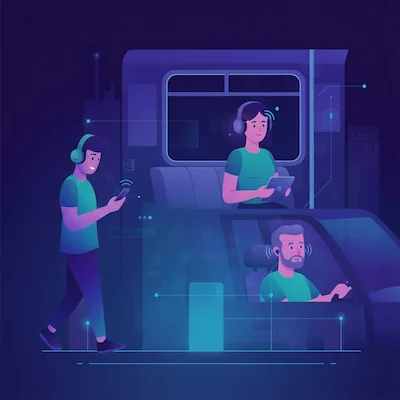
The same feed works for YouTube Music, Amazon Music, Pocket Casts, Overcast, and more. Each takes a couple of minutes and widens your reach with no extra content work.
Step 6: Add a Listen Button to Your Newsletter
Embed the InkToAudio player at the top of each Substack issue so readers can listen inline, and link to your podcast in your welcome email. You can also enable audio newsletter delivery so subscribers receive the audio directly. Readers can then choose whether to read, listen on your site, or use their podcast app.
Keeping It Automatic Going Forward
After setup, the recurring workflow is simple: publish your Substack issue, paste it into InkToAudio or use automated import, then render. The episode flows to each directory and the player updates on your site. Listener analytics show plays, completion, and drop-off, giving you concrete signals for refining length and structure.
Frequently Asked Questions
Do I need a microphone or recording setup?
No. InkToAudio generates the audio from your written content using AI voice or your cloned voice. There is no recording or editing involved.
Will the podcast update automatically when I publish a new issue?
Yes. Once your RSS feed is submitted to Spotify and Apple, each new episode you render is added to the feed and appears in the directories within a few hours—no resubmission needed.
Can I use my own voice instead of an AI voice?
Yes. Voice cloning lets you train a model on a short sample of your own voice and publish every episode in it. Many newsletter creators find their own voice improves listener retention.
Does this work with Ghost, beehiiv, or WordPress too?
Yes. The same workflow applies to any written publication. Paste the post text or import it from a URL, render, and distribute. Substack is the most common starting point.
How much does it cost?
Your first episode is free on the free tier. Paid plans scale by usage (rendering and listening minutes), so cost grows with your audience rather than requiring a large upfront commitment.
Start converting your newsletter to audio today
InkToAudio handles synthesis, podcast distribution, and analytics—free to start.
Try InkToAudio free