How to Turn Your Beehiiv Newsletter Into a Podcast (2026)
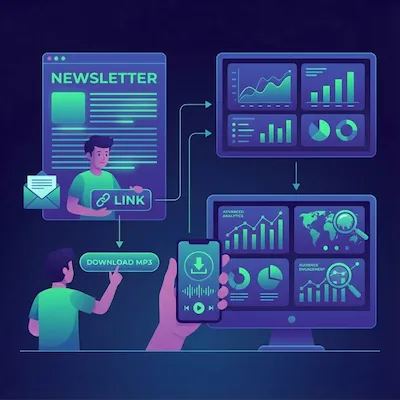
Beehiiv is built for readers, and some of your audience may prefer audio. Recording and editing every post is a second job most writers do not have time for. Beehiiv supports HTML Snippets and iframes inside posts, so you can place a player in front of web readers while InkToAudio generates the audio automatically without a microphone.
This guide walks through the whole workflow with InkToAudio, from draft to published audio. The first episode is free, so you can hear your newsletter as audio before committing to anything.
What you need
- A Beehiiv newsletter (any topic, any size)
- An InkToAudio account (the free tier covers your first episode)
- About 10 minutes for the one-time setup
Step 1: Write Your Post and Send It to InkToAudio
Compose your post the way you normally would. Clear headings, pull quotes, and formatting translate well to spoken audio, so get the post close to final first. You do not need to publish yet. In InkToAudio, open Forwards and copy your personal forwarding address (something like model.run.1856@inbox.inktoaudio.com). Then in Beehiiv, click the down arrow next to Preview, choose Send Test Email, and forward that test email to your InkToAudio forwarding address. Within moments the post shows up under Content, fully parsed and ready to work with.
Step 2: Edit and Transform the Text
Audio is not a 1:1 read of the page. Asides in parentheses, “see chart below” references, and dense paragraphs that work on the page can feel clunky out loud. In Content, click Edit next to your new item. You can edit the text directly, or use one-click AI transformations: Optimize for spoken content tightens sentence rhythm, Podcast style reframes the piece with the warmth of a host, and Newscast style makes it punchier and more declarative.
Make It a Conversation
If you want your post to sound like a podcast or discussion rather than a single narrator, switch on Multispeaker before running a transformation. The AI casts your content as a back-and-forth between voices, which is often far more engaging than one voice reading every line.
Step 3: Pick a Voice and Render
Choose a voice profile (or profiles for multispeaker) and a delivery style—podcaster, newscaster, radio DJ, storyteller, conversational, or energetic. For a newsletter, cloning your own voice is a powerful retention lever: readers who know your writing connect faster to your actual voice than to a synthetic one. When you are happy, click Save Changes & Render Audio. Depending on length, you will have a finished narration in a minute or two.
Step 4: Put the Player Back Into Beehiiv
Beehiiv publishes separate web and email versions of each post and supports both HTML Snippets and iframes, so you can tailor what each audience sees. Click Share in InkToAudio to find the embed options: Embed Code → Link, Direct Link, and Player (iframe).
Option 1 — A Listen Button (works in email and on the web)
Insert an HTML Snippet in your Beehiiv post and paste the Embed → Link code. This drops in a button that links to the InkToAudio listening page and works in both the emailed and web versions. You get full listening analytics—plays, completion rate, drop-off—on the InkToAudio side. Prefer to design your own button? Use the Direct Link as the URL for any custom button or text link.
Option 2 — Inline Player on Web, Button in Email
Email clients cannot render iframes, but Beehiiv’s web version can. Add two HTML Snippet blocks and use each block’s settings button to control visibility. Paste the Player (iframe) embed into one block set to web version only, so web readers get a full inline player. Paste the listen button from Option 1 into a second block set to email version only, so email readers get a tap-to-listen button. For most writers the move is simple: place a listen option near the top of the post (“Prefer to listen? Tap here.”) and let the analytics do their work.
Step 5: Distribute to Spotify and Apple Podcasts
To reach listeners in their podcast app, attach your episodes to an InkToAudio podcast RSS feed. Set your show name, artwork, and description once, then copy the feed URL and submit it to Spotify for Podcasters and Apple Podcasts Connect. Spotify usually lists shows within a few hours; Apple takes one to three days for first-time review. After that, every new post you render appears in both apps automatically—no resubmitting. The same feed also works for YouTube Music, Amazon Music, Pocket Casts, and Overcast.
Limiting Audio to Paid Subscribers
If you want listening reserved for paid subscribers, place each listen block—the email-only button and the web-only iframe player—below your content paywall break. Only paid subscribers will see, and be able to use, the listen option in either version.
Going Hands-Off With Auto Render
If you publish on a schedule, the manual steps get repetitive—so automate them. Build an Auto Render pipeline once with your preferred voice profile, multispeaker setting, and AI transformation. Then open Forwards, toggle on Auto Render, and select your pipeline. From that point on, every post you forward to your InkToAudio forwarding address renders automatically with your chosen settings. Write in Beehiiv, share to your forwarding address, drop a listen option back into the post—your audience picks the format that fits their day.
Frequently Asked Questions
Do I need to publish the Beehiiv post before sending it to audio?
No. A test email is enough. Click the down arrow next to Preview in Beehiiv, choose Send Test Email, and forward that email to your InkToAudio inbox address. The post is parsed and ready before you ever hit publish.
Can I show an inline audio player in my Beehiiv email?
Email clients cannot render iframe players, so in the emailed version you use a tap-to-listen button (the Embed → Link snippet). The full inline iframe player works in Beehiiv’s web version. Beehiiv’s per-block visibility settings let you show each one only where it works.
Can I use my own voice instead of an AI voice?
Yes. Voice cloning trains a model on a short sample of your voice so every episode publishes in it. Many newsletter creators find their own voice improves listener retention.
Can I restrict audio to paid subscribers?
Yes. Place the listen blocks below your Beehiiv content paywall break. Only paid subscribers will see and be able to use the listen option.
How do I avoid redoing this for every post?
Build an Auto Render pipeline once with your voice and transformation defaults, then enable Auto Render on your Inbox. Every post you forward to your InkToAudio inbox renders automatically with those settings.
Start converting your newsletter to audio today
InkToAudio handles synthesis, podcast distribution, and analytics—free to start.
Try InkToAudio free