How to Turn a Newsletter Into a Podcast in 10 Minutes
You already have a newsletter. Your readers already trust your voice. The obstacle is production overhead: recording, editing, hosting, RSS, distribution, and analytics. Together, those tasks can turn a simple idea into a multi-week project that never gets started.
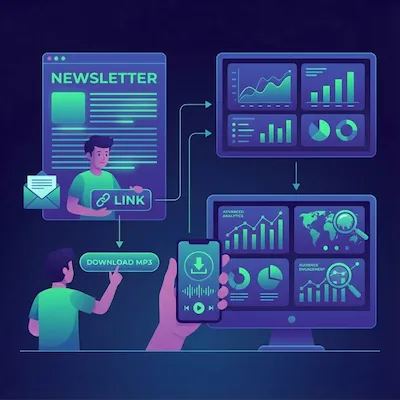
This guide compresses that work into ten minutes. By the end you will have one newsletter issue published as a podcast episode, embedded back in your site or email, and listed in a podcast RSS feed that you can submit to Apple Podcasts and Spotify. The same workflow then runs on autopilot for every future issue.
Before you start: a 60-second checklist
Pull these together before the clock starts. They take less time to gather than to look for mid-workflow.
- The newsletter issue you want to convert (link, file, or pasted text)
- A show name and one-line description for the podcast
- Cover artwork at 1400×1400 pixels. Your newsletter logo on a solid background works.
- A host email address for the RSS feed
- An InkToAudio account (a free trial works for the first episode)
You do not need a microphone, audio software, or any podcast hosting subscription. The platform handles all of it.
A 10-minute workflow
Minutes 0–2 · Create your podcast feed
Head to the Podcast Feeds page in the dashboard and create a new feed. You will be asked for the show name, description, language, category, and cover artwork — the same metadata Apple Podcasts and Spotify require. Save the feed and copy the RSS URL. That URL is yours forever, and every episode you attach to this feed will appear there automatically.
If you already have a feed, skip this step and attach the new episode to it later.
Minutes 2–4 · Choose a voice
Open Settings and go to Voice Profiles, then click Create A Profile. A voice profile stores your chosen voice (or voices) so you can reuse it across every episode without picking again.
When creating a profile you have several options:
- Single voice — choose from 180+ studio voices across multiple languages and accents. Best for a traditional narration style.
- Cloned voice — upload a short voice sample (30 seconds of clean recording is plenty) and the platform builds a clone you can reuse forever.
- Multi-speaker — create two or more profiles and combine them. The platform casts your content as a conversation between voices, giving episodes a podcast-interview feel.
For a first episode, a single studio voice profile gets you live fastest. You can add a cloned voice or switch to multi-speaker later without breaking the existing RSS feed.
Minutes 4–5 · Import the issue
Go to Create Audio and import your newsletter issue. You have three easy options: paste the issue text directly, paste the HTML, or forward the issue to your dedicated InkToAudio inbox address. The platform parses the body, strips footers and unsubscribe links, and preserves headings and lists.
If your newsletter lives on Substack, Beehiiv, Ghost, or any other website platform you can also use Import Content to pull in all of your content at once.
Minutes 5–7 · Choose how to prepare the script
Once the issue is imported you choose how to prepare the script before rendering. You have a few options:
- Apply TTS Rules — keeps every word of your original content intact but optimizes the script for audio delivery: expanding abbreviations, removing URLs, adjusting punctuation for natural pacing. Best when you want your exact content read aloud.
- AI rewrite — rewrites the script for better spoken delivery, smoothing out written-word patterns that sound awkward when narrated. Choose from the available AI models based on your preference.
- Multi-speaker AI rewrite — if you want a conversational, two-host episode, select Multi-Speaker first, then choose one of the AI rewrite tools. The AI will adapt your content into a back-and-forth dialogue between the voices in your profile.
Apply TTS Rules is the safest starting point for a first episode — your content stays unchanged and the optimization is non-destructive.
Minutes 7–9 · Pick your voice, select the feed, and create audio
Select the voice profile you created (or pick individual voices if you prefer). If you set up a multi-speaker profile, both voices will appear here. Then select your podcast RSS feed from the dropdown so the finished episode is attached automatically. Click Create Audio. A 1,500-word issue typically renders in under 90 seconds.
When the render finishes, listen to the first 30 seconds. If the intro and pacing feel right, you are done. If not, you can edit the script and regenerate. Most first-time episodes need no edits at all.
Minutes 9–10 · Submit to Apple Podcasts, Spotify, and more
Go back to your Podcast Feeds page and copy the RSS feed URL for your show. Paste it into Spotify for Podcasters and Apple Podcasts Connect to list your podcast in the major directories. Spotify typically validates and lists the show within a few hours; Apple Podcasts takes one to three days for the first submission. After that, each new episode publishes automatically when it is created.
Not ready for the directories yet? Skip this step. The feed and player work without distribution, and you can come back to it any time.
Required-assets checklist
- Show name (under 60 characters works best in directory listings)
- Show description (1–2 sentences, repeat your newsletter value prop)
- Cover artwork 1400x1400 pixels minimum, 3000x3000 pixels maximum, PNG or JPG
- Host email address (required by Apple Podcasts)
- Show category (pick the one closest to your newsletter topic)
- Language code (en-US, en-GB, etc.)
- One newsletter issue, parsed and clean
Common first-episode mistakes to avoid
- Skipping voice profile setup. Create a profile in Settings first so you can reuse it across episodes without re-selecting every time.
- Selecting an AI rewrite tool before enabling Multi-Speaker. Toggle Multi-Speaker on first, then choose the AI tool.
- Picking a voice you have not previewed. Always listen to a sample before saving the profile.
- Including the unsubscribe footer in the script — strip it before generating.
- Using cover artwork under 1400×1400 pixels — Apple Podcasts will reject it.
- Forgetting the host email address — Apple Podcasts will reject the feed without one.
- Re-creating a new RSS feed for every episode. Use one feed and attach episodes to it.
- Submitting to Apple Podcasts before the first episode is attached. The feed must contain at least one episode at submission time.
After episode one: turn it into a system
Once the first episode is live, the platform can take over. Connect your newsletter RSS feed or set up an auto-import inbox address, choose a default voice, and future issues auto-render into episodes on the same feed.
Audio is now a continuous channel for your publication, not a one-off project. Each issue reaches the subset of your audience that prefers listening, and the same content powers a new sponsorship surface that you did not have last week.
Frequently Asked Questions
Can I really publish a podcast episode in 10 minutes with no audio experience?
Yes. The 10-minute workflow assumes no recording, editing, or hosting experience. The platform handles script optimization, narration, RSS feed hosting, and embedding. The only thing you bring is the newsletter content and a few pieces of show metadata.
Do I need a separate podcast host like Buzzsprout or Anchor?
No. InkToAudio hosts the RSS feed and audio files. You submit the InkToAudio feed URL directly to Apple Podcasts and Spotify.
How long does Apple Podcasts take to list the show?
First-time submissions typically clear in one to three days. Spotify is usually faster — often a few hours. Once the show is listed, future episodes appear automatically with no review.
Can I use my own voice instead of an AI voice?
Yes. Upload a 30-second to 2-minute voice sample to train a clone, then use it for every episode. You can switch from a studio voice to a clone later without breaking the existing feed.
What if my first render does not sound right?
You can edit the script in the editor, swap the voice, or adjust pacing settings, then regenerate. Most first-time episodes need no edits — but the option is there if you want to refine.
Start converting your newsletter to audio today
InkToAudio handles synthesis, podcast distribution, and analytics—free to start.
Try InkToAudio free